If your school's store provides a yearbook dedication ad product using the online ad builder, follow the steps below to create your ad.
Don't see an ad product? Your school may not be offering this service.
See an ad product but no online ad builder? Your school's yearbook team may be creating the ads themselves.
Contact your school for more info about product availability and procedures.
Step 1: Select the dedication ad product
Ad product on a computer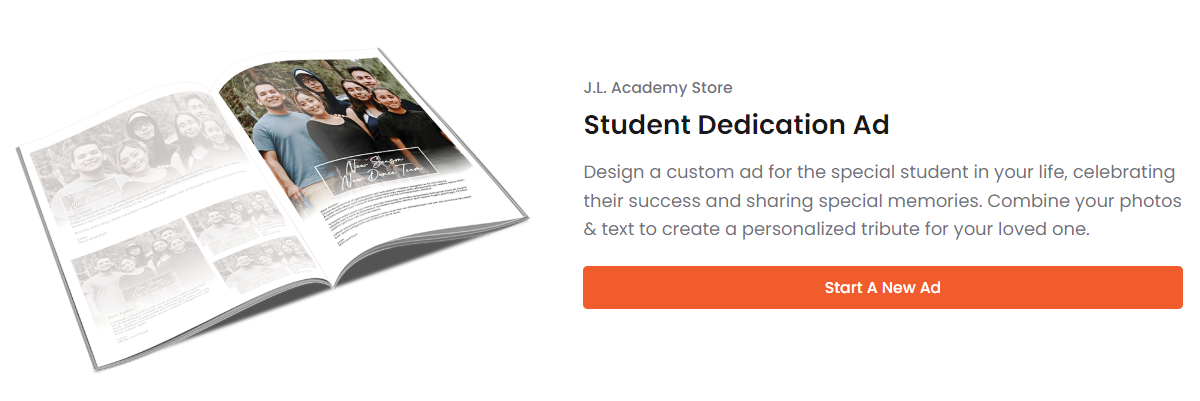 | Ad product on a mobile device (scroll down to access) 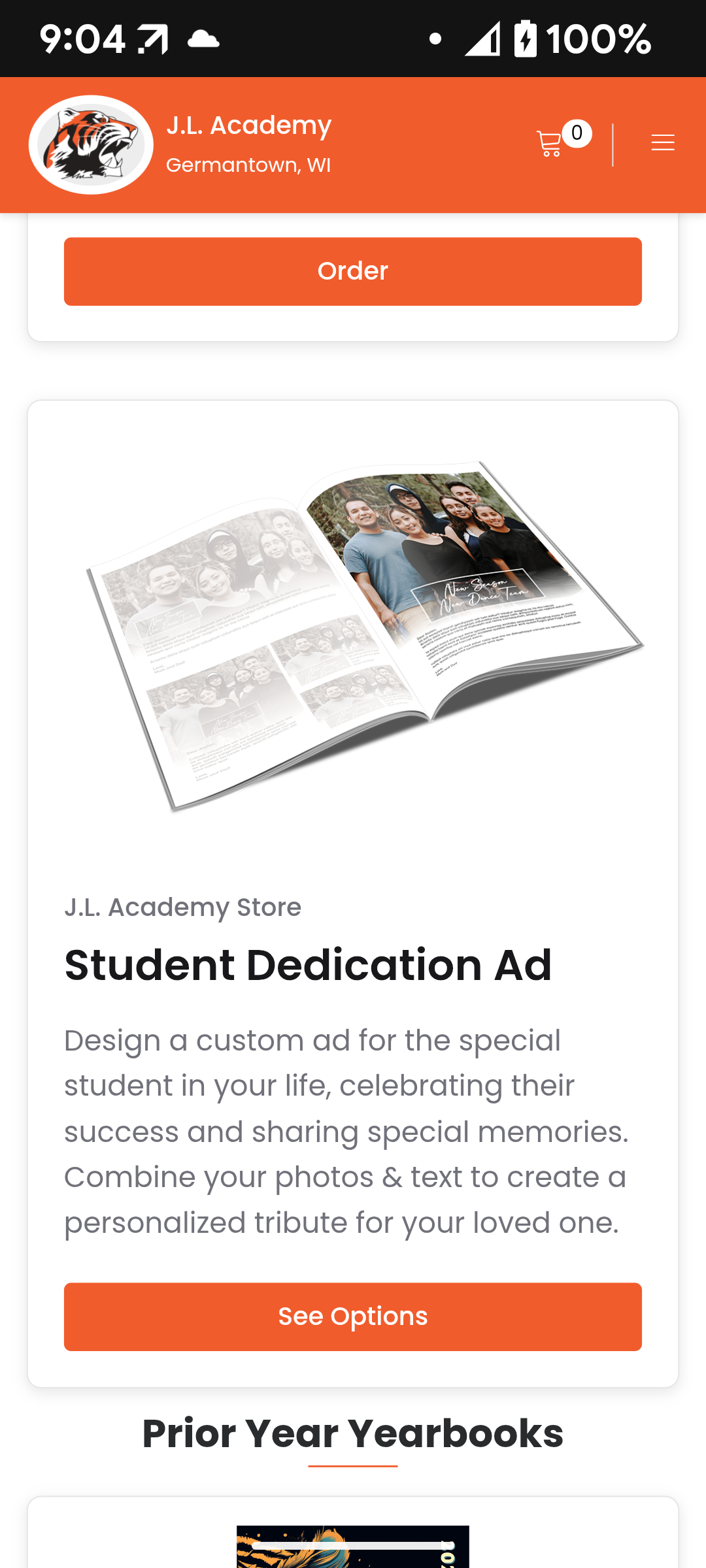 |
Step 2: Sign in to create your ad
Purchased an ad previously in the Yearbook market? Log in. 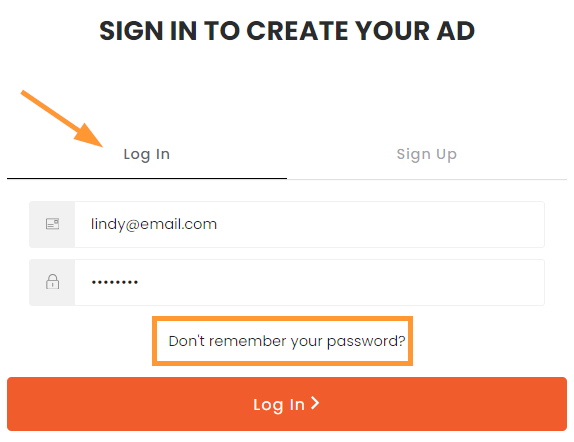 Don't remember your password? Click on the password reset option below the form. | New to Yearbook Market? Sign up.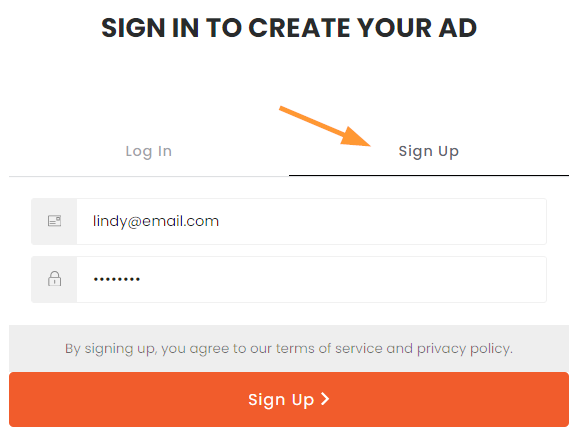 A login is required to save your work in progress. A login is required to save your work in progress. |
Step 3: Choose your ad product
Your school may only offer select ad product sizes, and may provide different products for particular students -- senior class, Kindergarten, etc. -- or sponsor ads.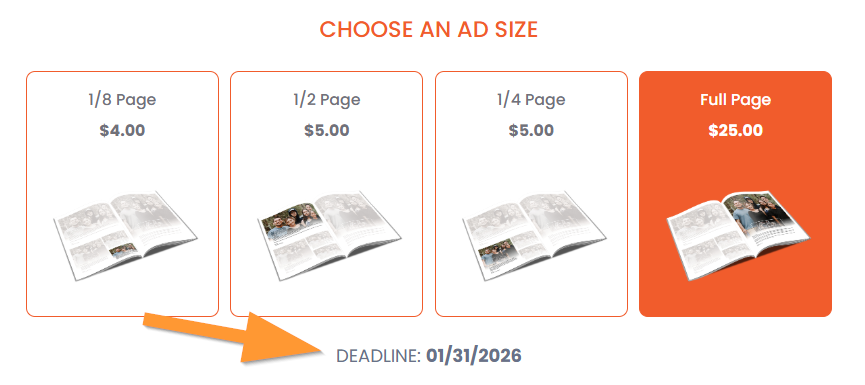
Note that the deadline to purchase your ad is displayed under the products. Be sure to complete and purchase your ad prior to midnight on the last day of sales or you will not be able to submit your ad.
Step 4: Choose a template
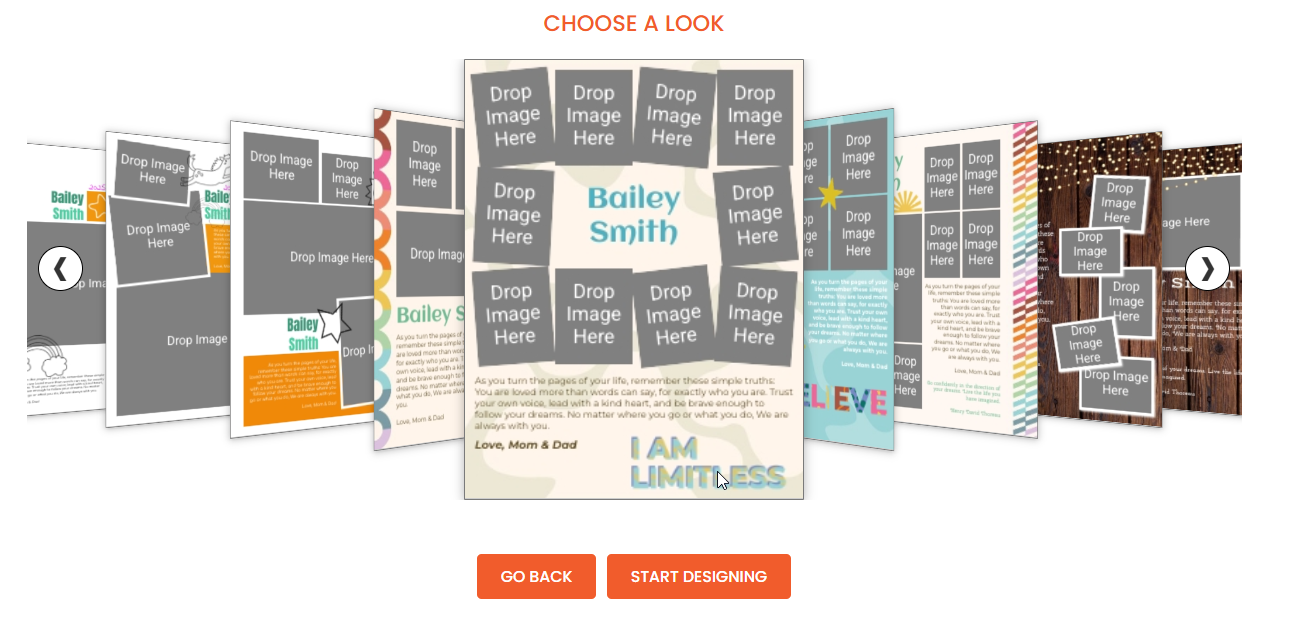
Scroll through the available options using the arrows on either side of the template previews. When you find the template you want to work on, click Start Designing. Don't worry - you can change the look of your ad at any time during the editing process.
Need to upload a premade design designed in a different editing software? Click here to learn more.
Step 5: Edit your design
Choose a new template, if desired.
Use the arrow keys to view options, then click on a template to select it and apply it. Wherever possible, elements from your previous design will be retained.
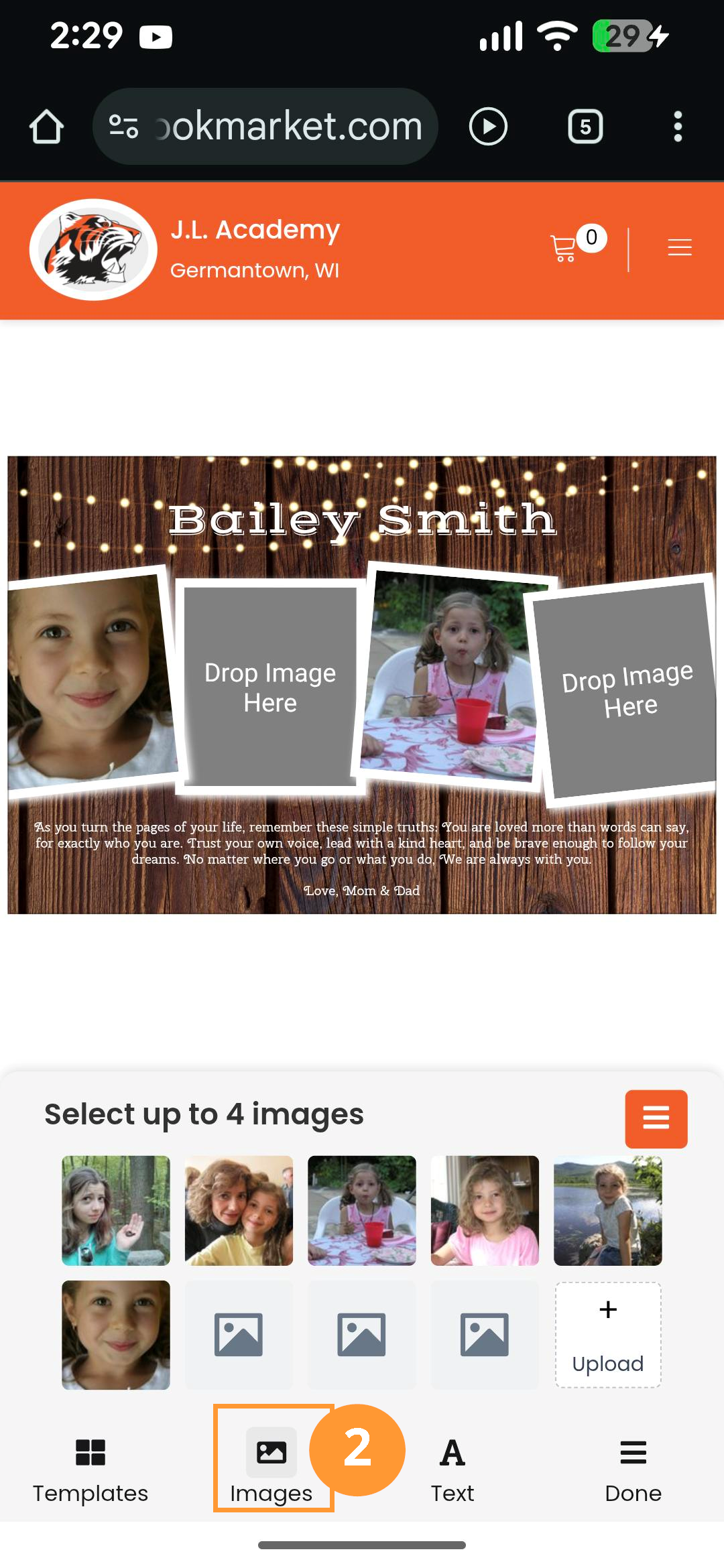
Upload photos (maximum 10) then place them into the template.
To add an image to the template, click on it, then click on the image frame in the template. Zoom and pan the image within its frame for better placement.
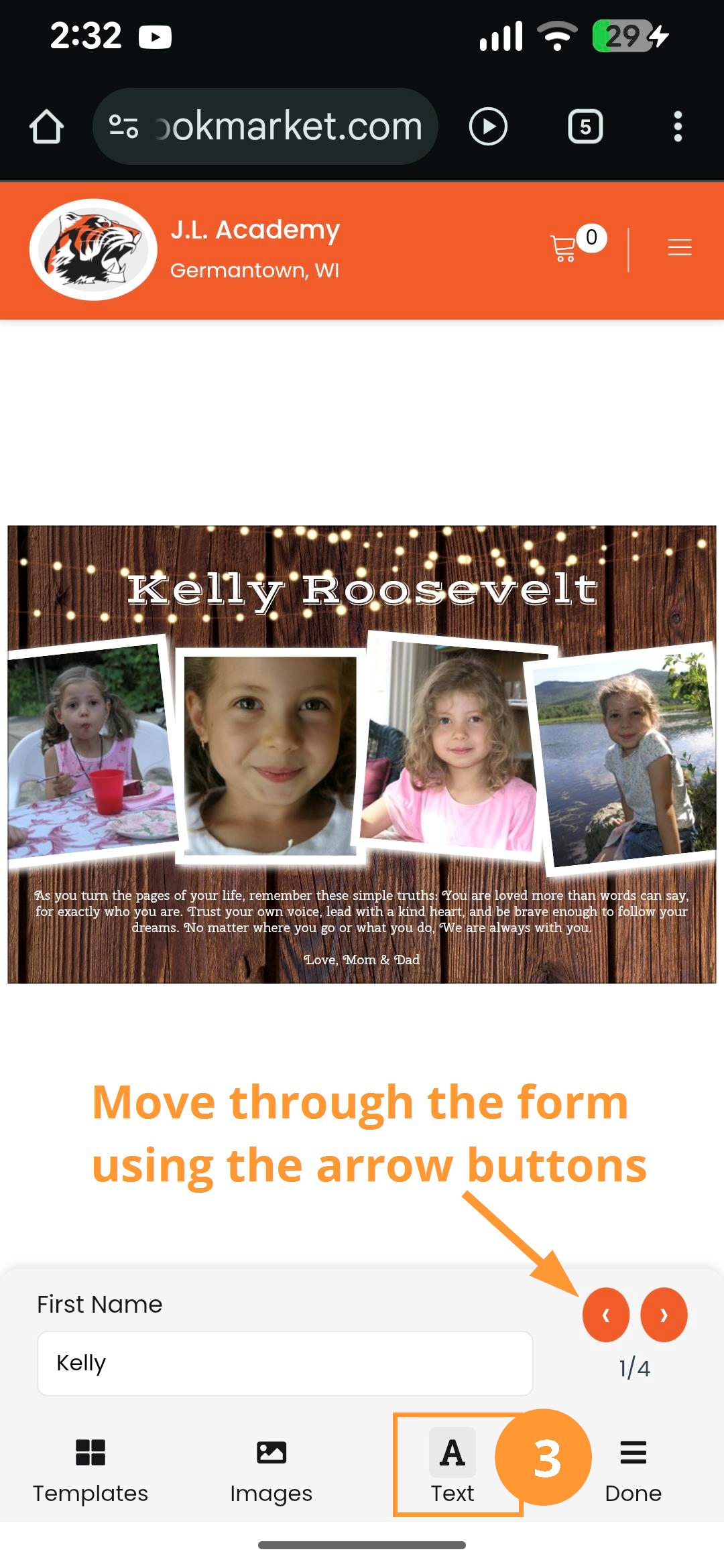
Complete the form to add text to your ad.
Text will resize to fix the available area. Note that layouts will include different text options, such as a longer dedication field or a "class of 202x"option.
Designing on a computer
Templates (1), photos (2) and the text form (3) are available on the left side of the screen. Scroll down if require to complete the form.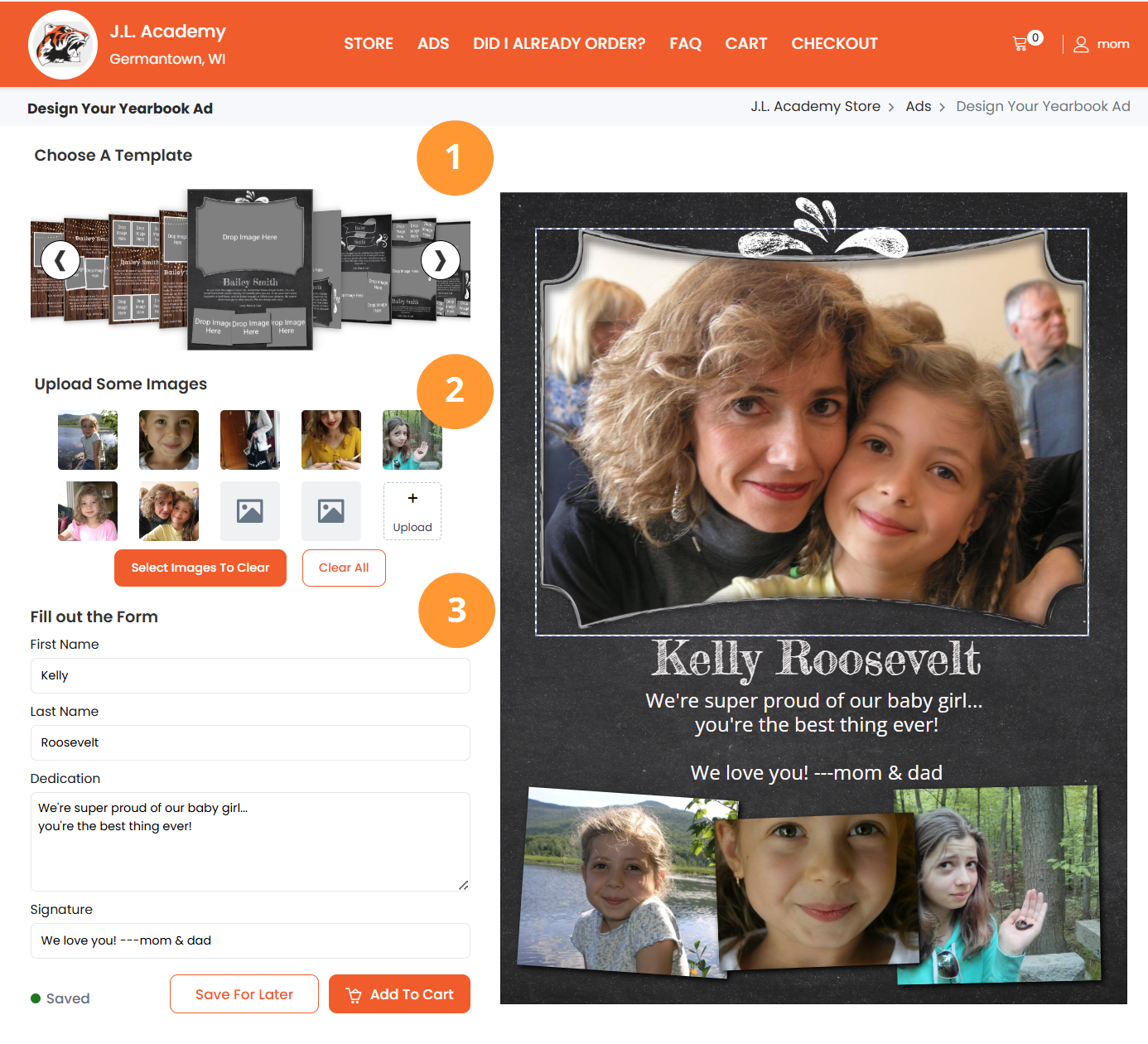
Designing on a mobile device
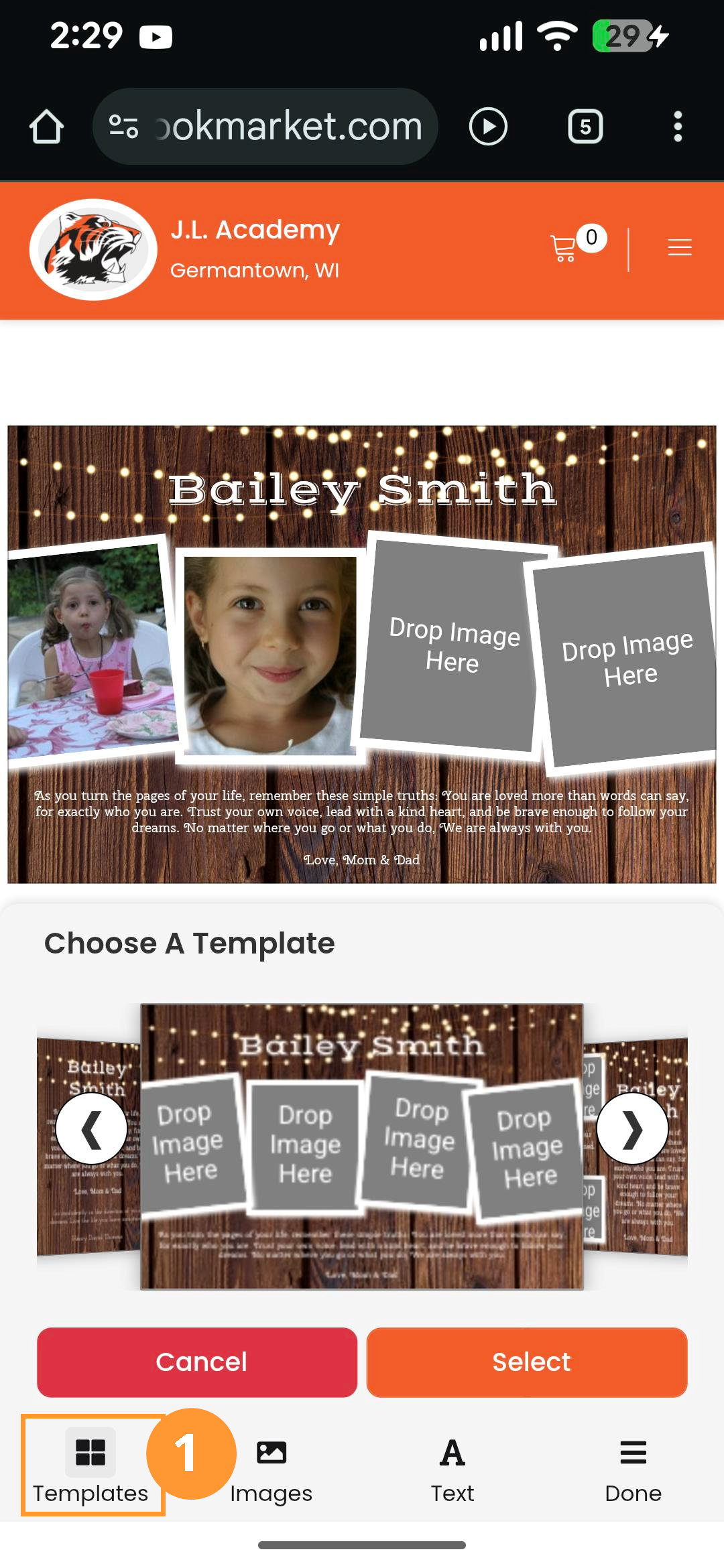
Templates (1), photos (2) and the text form (3) are available in tabs at the bottom of the screen.
 |  |  |
Step 6: Save your work OR Add to Cart.
- Save for later: if you need to come back to work on your ad at another time. Log back into the ad builder. You will find your work in progress to re-open in the editor.
- Add to cart: if your ad design is complete and you are ready to purchase. Complete the order form, access your cart and make the purchase. Your ad will be finalized and sent to your yearbook committee.
On a computer
| On a mobile device 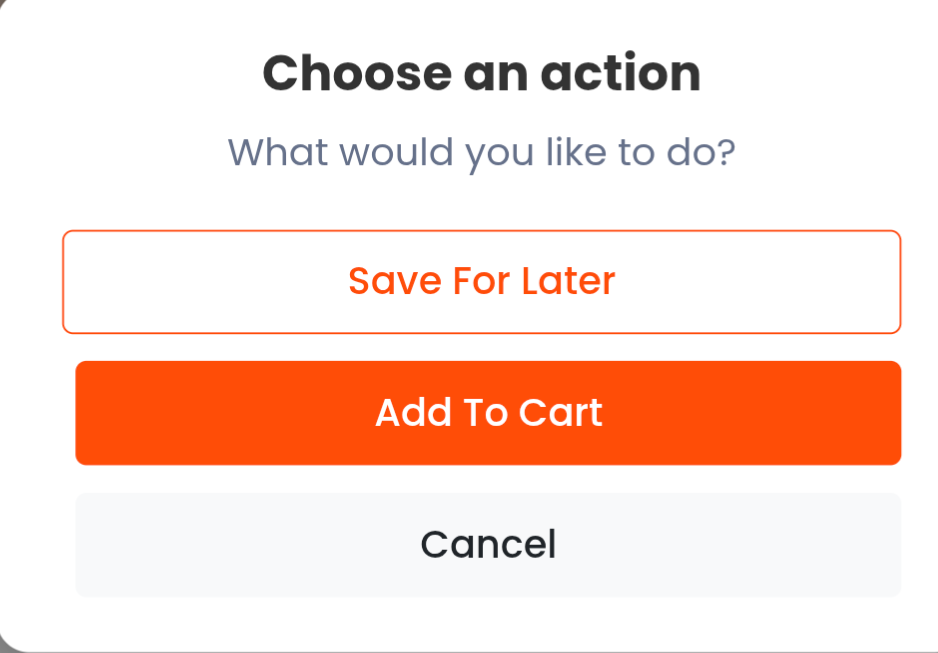 |


IMPORTANT: Be sure to complete and purchase your ad prior to midnight on the last day of sales or you will not be able to submit your ad.
Was this article helpful?
That’s Great!
Thank you for your feedback
Sorry! We couldn't be helpful
Thank you for your feedback
Feedback sent
We appreciate your effort and will try to fix the article